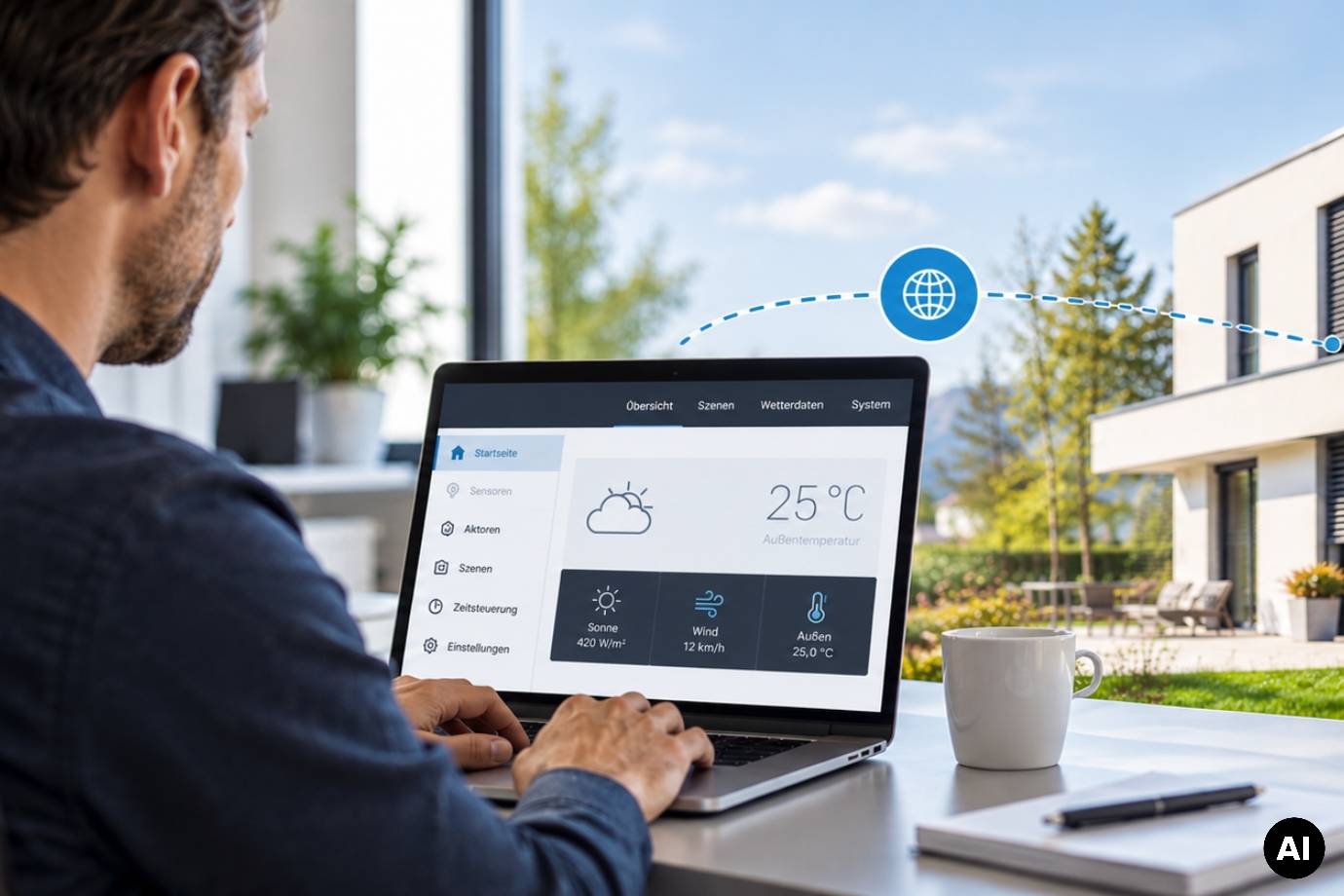
Man working on a laptop showing the user interface of a building control system, with a modern house in the background (AI-generated image)Man working on a laptop showing the user interface of a building control system, with a modern house in the background (AI-generated image)

WS1000 Connect: Service via remote maintenance

News of 29 October 2026

Customer service straight from your office

When customers still want changes after a building control system has been commissioned, another on-site appointment is often required. This takes time and means additional journeys.

With the remote maintenance function of the WS1000 Connect building control system, you can handle many of these service tasks directly from your office. Whether you are adjusting automation settings, checking drives or answering customer questions, you access the controller’s user interface via TeamViewer.

In this article, we show you how it works and what remote maintenance can do for you.

Step by step

How remote maintenance works with WS1000 Connect

  1. Connect to Wi-Fi: Make sure WS1000 Connect is connected to Wi-Fi.
  2. Activate remote maintenance: The customer activates remote maintenance in the service menu on the display.
  3. Share the ID: A TeamViewer ID appears on the WS1000 Connect display, which the customer passes on to you.
  4. Establish the connection: Enter the ID in TeamViewer on your PC.
  5. Confirm access: The customer confirms remote access directly on the display.

You can then access the WS1000 Connect user interface and make the required settings remotely.

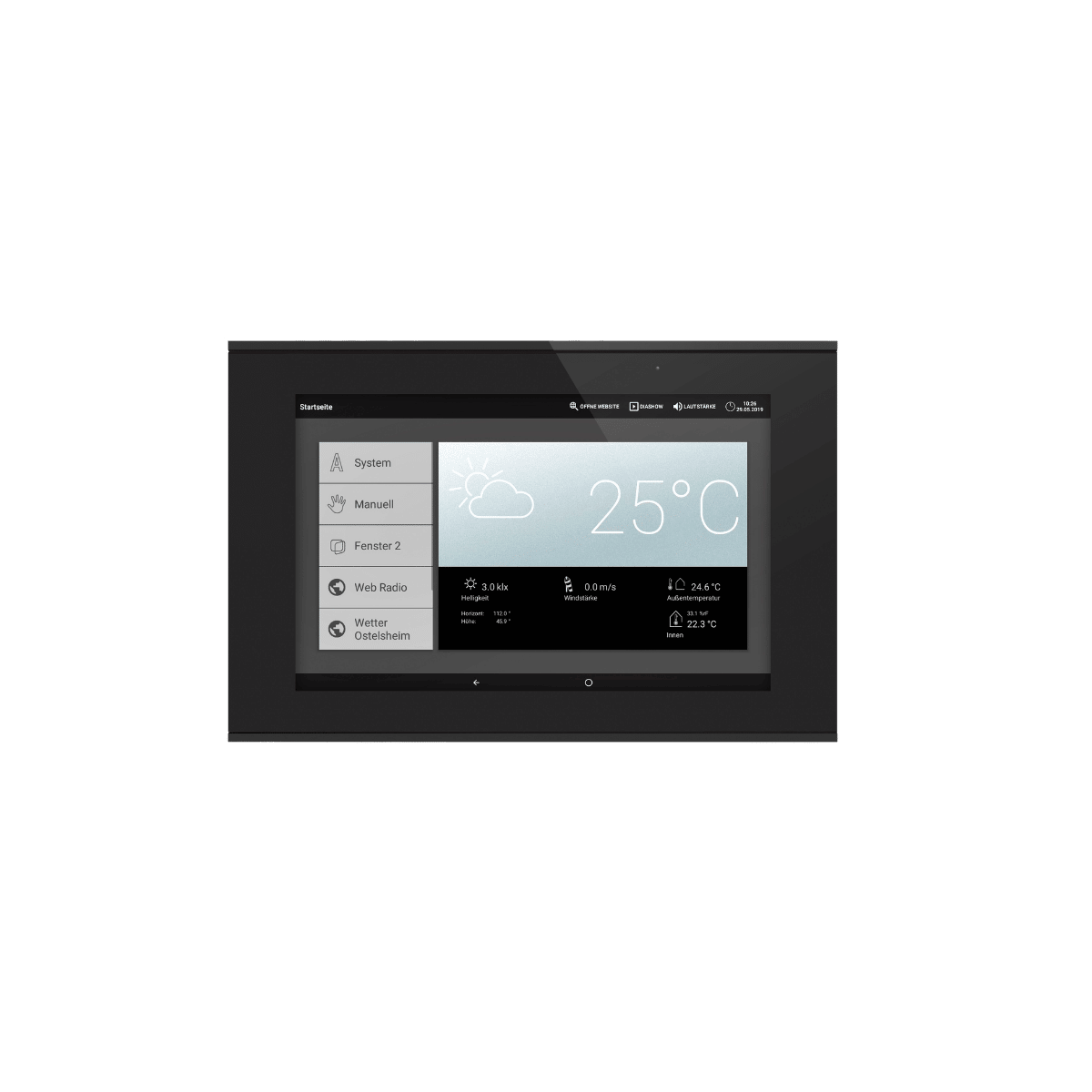
WS1000 Connect display showing the start screen, menu and weather dataWS1000 Connect display showing the start screen, menu and weather data
Practical benefits

How remote maintenance helps

Icon of a gear with an arrow
Adjust automation

Shading and window automation settings can be changed later on, for example when a customer would like a different response to sun or wind. You make the adjustments directly in the user interface.

Icon of a venetian blind with an up and down arrow
Check drives

Use manual control to operate awnings, venetian blinds or windows and check how they respond. Make sure the movements are monitored on site and that nobody is within the danger zone.

Icon of a screen with a magnifying glass and a tick
Review settings

You see the same view as on the display. This lets you check settings, keep an eye on the readings and answer your customers’ questions precisely. Many queries can be resolved in the first conversation.

Community project

Connecting WS1000 Connect to Home Assistant

An open-source integration for Home Assistant is available for WS1000 Connect, developed by a user from the GitHub community. It brings the controller’s data into Home Assistant via the local network, displays it there and allows individual functions to be operated. Automation and protective functions continue to run in WS1000 Connect.

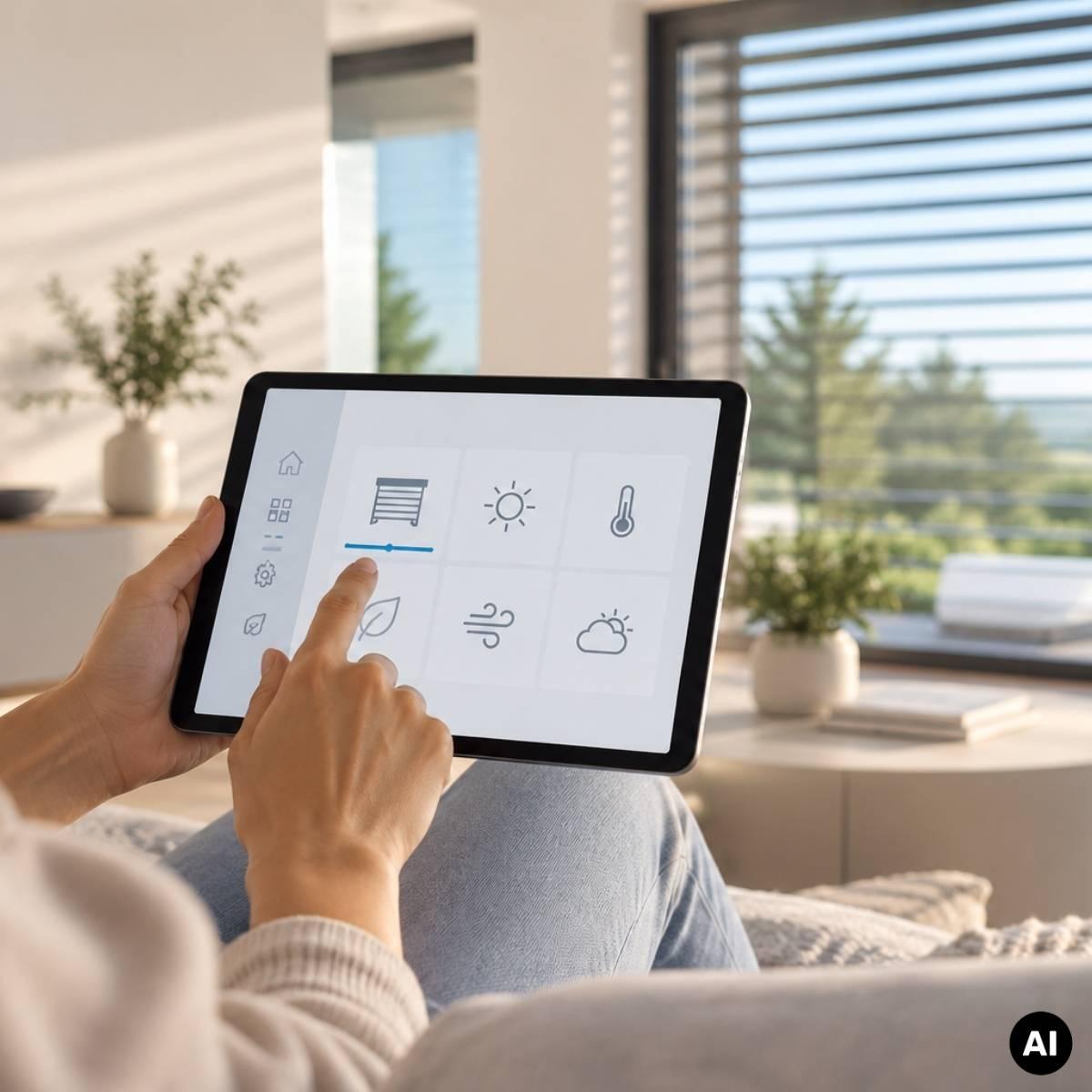
Hand operating a tablet with icons for shading, lighting, temperature and weather in a bright living room (AI-generated image)Hand operating a tablet with icons for shading, lighting, temperature and weather in a bright living room (AI-generated image)
More practical knowledge

WS1000 Connect in detail

To find out what WS1000 Connect can do beyond remote maintenance, read our product article. It presents the building control system in detail, from the display, scenes and time control through to local data storage and radio-based expansion options.

Webinar recordings and explainer videos on WS1000 Connect are available on our YouTube channel.

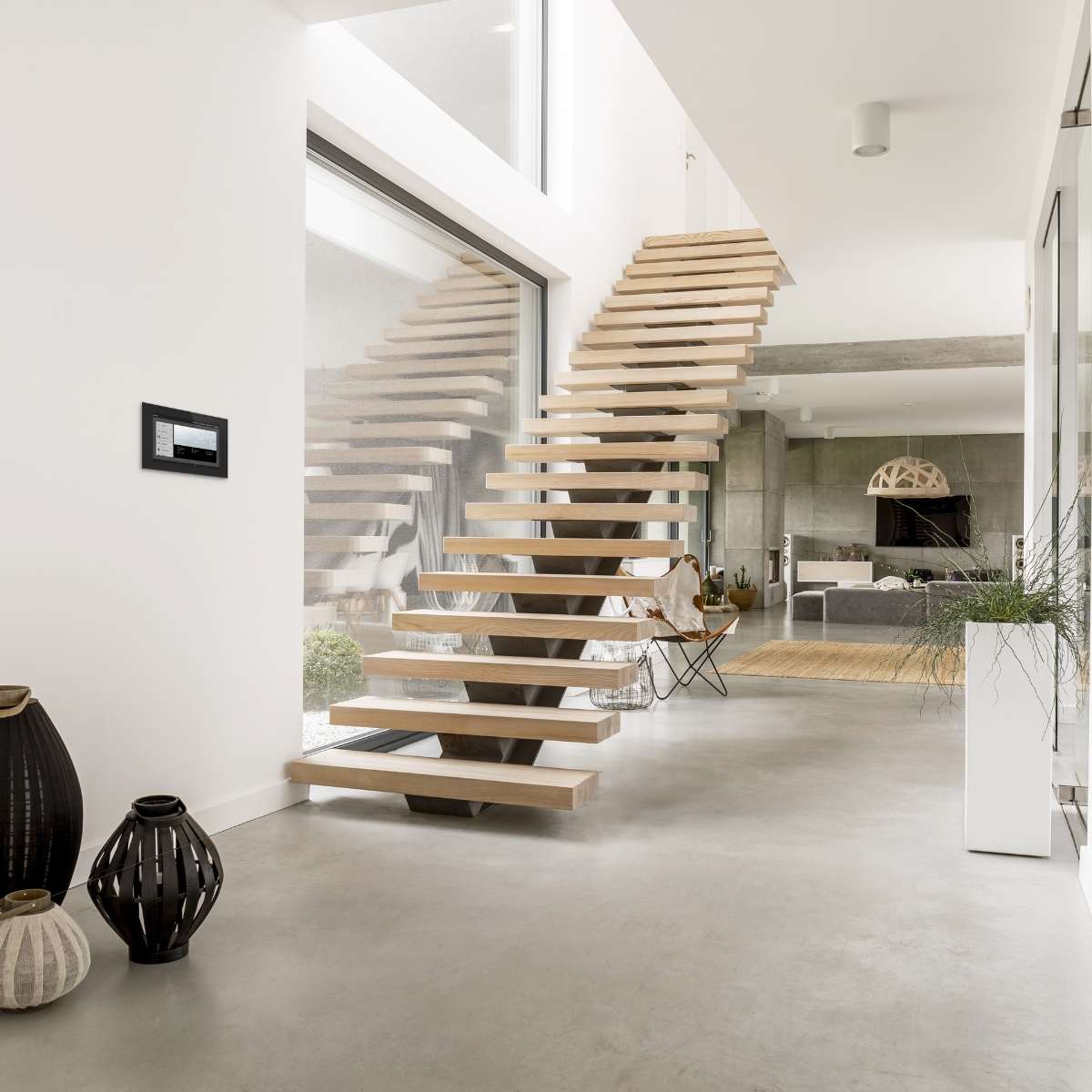
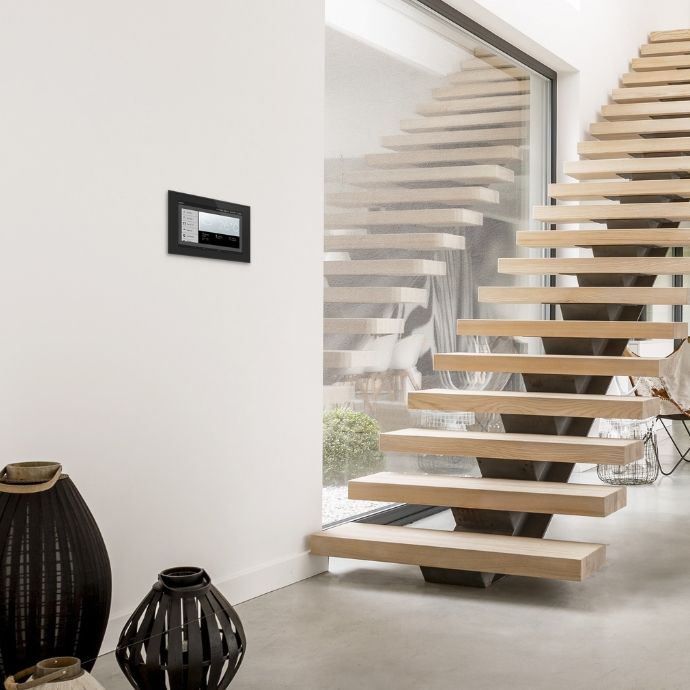
WS1000 Connect on the wall next to a floating wooden staircase in a bright living spaceWS1000 Connect on the wall next to a floating wooden staircase in a bright living space
Technical articles

You might also be interested in:

Modern house with conservatory and green lawn in front
Finding the right control system for your smart home

Consider expandability and data security right from the start.

More about the right control system
Solexa Home Set control panel on a white table in a modern living space
Automatic control for shading, lighting and climate

Solexa Home provides automatic shading and an optimal indoor climate, locally, without the need for a cloud connection, and always tailored to the current weather conditions.

More about Solexa Home
A modern office building under a blue sky
Ventilation control in smart buildings: efficiency, safety, comfort

How integrated ventilation control increases efficiency, meets standards and connects systems.

More about ventilation control

Garanzia legale

Avviso armonizzato UE sulla garanzia legale

Garanzia legale minima di due anni per i beni venduti nell'Unione europea.

I consumatori possono far valere i loro diritti nell'ambito della garanzia legale di conformità, ad esempio se i beni:

  • non corrispondono alla descrizione;
  • non funzionano come previsto.

I venditori sono responsabili di qualsiasi difetto di conformità esistente al momento della consegna dei beni e che si manifesta entro il periodo della garanzia legale. In tal caso i venditori sono tenuti a offrire:

  • la riparazione o sostituzione gratuita;
  • in alcuni casi, una riduzione del prezzo o il rimborso integrale.

Alcuni paesi prevedono un periodo di garanzia legale più lungo. Per i beni di seconda mano può valere un periodo più breve, ma non inferiore a un anno.

Cosa fare se si ricevono beni non conformi:

  1. contattare quanto prima il venditore per segnalare il problema;
  2. fornire la prova dell'acquisto, ad esempio una ricevuta, una fattura o un estratto conto bancario.

I venditori e i produttori possono anche offrire garanzie commerciali, che si applicano indipendentemente dalla garanzia legale. Ad esempio, questa etichetta GARAN rappresenta una garanzia commerciale di durabilità offerta dal produttore senza costi aggiuntivi, che copre il bene nel suo complesso.

Per saperne di più sui propri diritti in un determinato paese, consultare la pagina qui sotto o chiedere informazioni al venditore. https://europa.eu/youreurope/garanzie